
2026 note: I wrote this in 2022 and the template still works as described. I keep it current (the last update, in July 2026, added bulk renumbering of GL accounts). It builds requests for Sage Intacct's older XML API. For bigger jobs I now use the newer REST API.
While it's quite easy to import large amounts of data into Sage Intacct to create records using the out-of-the-box templates, as you may have discovered, not all of those templates support the ability to update records in the same way. This how-to guide and its Google Sheets template are designed to solve that problem. It's something I created to make my own life easier. It has saved me hundreds of hours, so I figured I would share it in the hope that it does the same for you.
Before we begin
Background
The general strategy described here should work for any object and function the Sage Intacct API supports, but given the reality of limited time, the template covers the objects I have most often needed to mass update: GL Account, Project, Entity, Location, Department, Class, Standard Task/Cost Code, Standard Cost Type and Item.
Disclaimer
I hope you find it useful and that it works perfectly, but please understand that it comes with a level of technical support equivalent to its price: zero.
All use of this template is at your own risk. It is meant to make data changes as easy as possible, which unfortunately means that if you aren't careful you could mess things up badly in short order. Test your changes on small data sets before running anything at scale, and be especially careful in live production environments.
Prerequisites
- Get a Sage Intacct Web Services developer license from Sage if you don't already have one. You will need a Sender ID and Sender Password.
- Set up Postman by following Sage's own guide: Your First XML API Calls.
- Make a copy of the Sage Intacct Web Services Data Update Tool for Google Sheets (File, then Make a copy).
Using the template
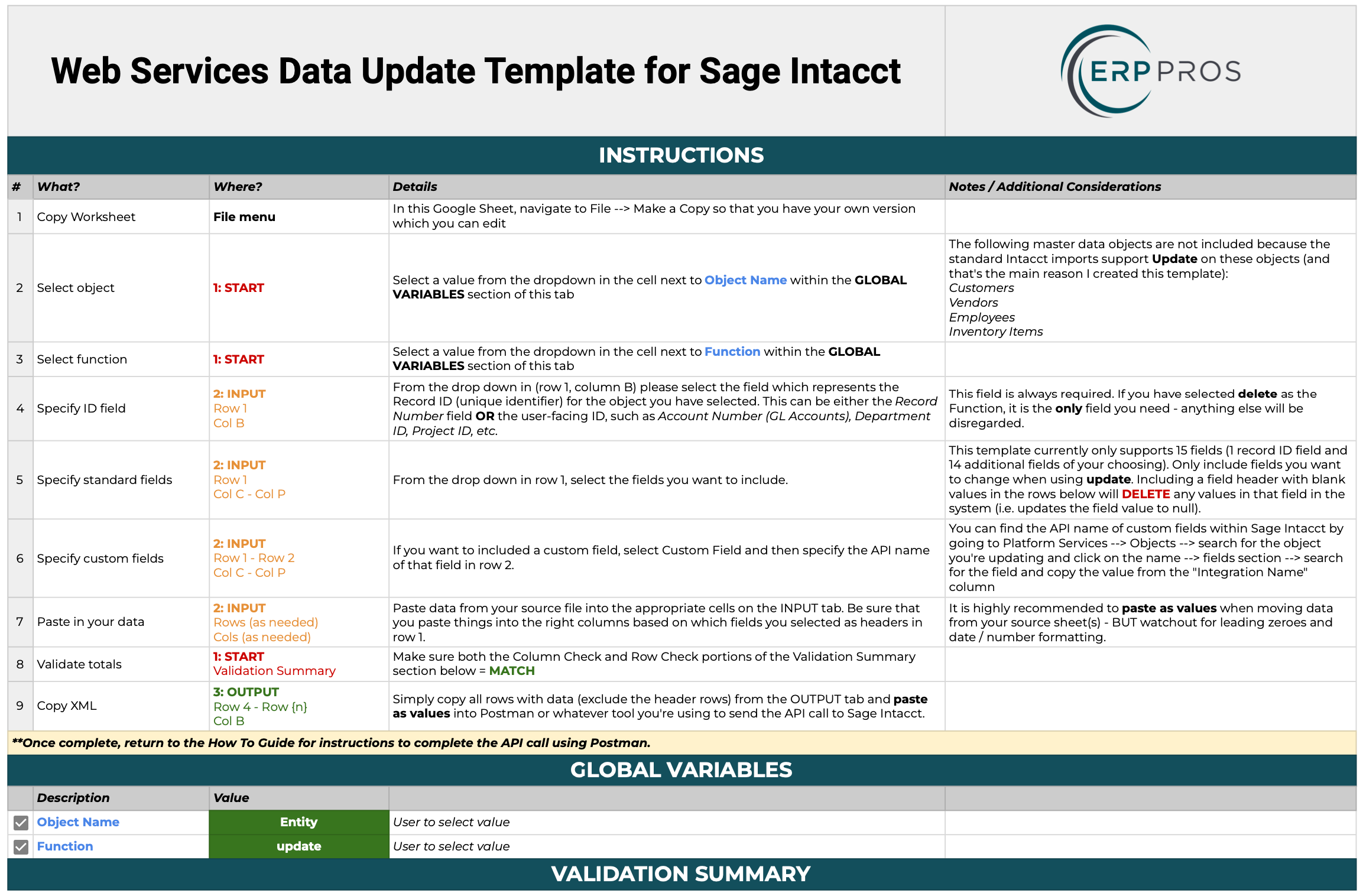
This is a high-level overview. The template's START tab has the detailed instructions.
1. Select an object and function
On the 1: START tab, find the Global Variables section. Pick the object you want to change (GL Account, Department, Project and so on) from the drop-down next to Object Name, then pick the function next to Function. Most of the time that's update.
2. Select the fields to include
On the 2: INPUT tab, use the drop-down in row 1, column B to choose the field that identifies each record: either the record number or the ID people see, such as the account number or department ID. Then choose up to 24 more fields in row 1, columns C onward.
For a custom field, choose Custom Field and type the field's API name in row 3. You'll find it in Sage Intacct under Platform Services, then Objects: open the object, go to its fields and copy the value in the Integration Name column.
Only include fields you want to change. A column with a header and blank cells below it will clear that field in Sage Intacct.
3. Paste in your data
Paste your records into the INPUT tab, each value under the right header. Paste as values, and watch for leading zeros and date or number formats that your source sheet may have changed.
Checkbox fields are the one surprise. Unlike Sage Intacct's own import templates, the API wants true or false, not T or F. Google Sheets turns true into TRUE, so type an apostrophe first: 'true.
4. Make sure things look good
Back on the START tab, the Validation Summary checks your work. Both the Column Check and the Row Check should say MATCH. If they don't, or you see cells highlighted in red, something is off. Fix it before going further. This is also a good moment to try a small sample in a sandbox company first.
5. Copy the XML output into Postman
On the 3: OUTPUT tab, copy every row with data in column B, starting at row 4 (skip the header rows). In Postman, choose the right environment, open the API function template from Sage's collection (or your own), go to the Body tab and paste the XML between the <function> tags. If a quotation mark sneaks in at the very beginning or end, delete it.
6. Execute!
Send the request. Read the response for errors, then open a few of the changed records in Sage Intacct to confirm the values landed the way you expected.
Other options
It's worth noting that I live in Google Sheets (instead of Microsoft Excel) and run macOS (not Windows), which puts me in a relative minority in the ERP consulting and finance world. If you're not in that minority and prefer less technical options, there are easier ways to do similar things with third-party products, though most that I know of come at some cost. Check the Sage Intacct Marketplace for other options.
One technical note: the template relies on Google Sheets array formulas, so it breaks if you download it to Excel.